Nextcloud Server Setup
I set up my Nextcloud server instance prior to starting My Media Server Project and had been using it for various things (primarily as a replacement for docs I previously kept on Dropbox and Google Docs). The Nextcloud server and related apps are very user-friendly and fit in with my plan for how to get our family photos and videos easily uploading to our media libraries.
I have my Nextcloud server running in the cloud; it was pretty painless to setup. I have an account set up with Linode and deployed a Nextcloud All-in-One app.
Group Folders
Because I wanted one process to handle the processing of photos and videos that get uploaded, I needed a solution that allowed multiple Nextcloud users to access the same folder. The solution for that is a Nextcloud app called Group Folders. As long as that app is enabled in Nextcloud, in Administration settings/Administration there is a Group Folders section where it can be configured.
First I made sure that the users I have created in Nextcloud for my family members are all part of a group. That is done at the /settings/users page – which you can get to by clicking on your profile circle in the upper right and then choosing “Users” from that menu. On the left-hand side is a “Groups” section and next to it is a + that allows you to create a group. I created a group called Family and went into “Active Accounts” (again, on the left-hand side), edited each family member’s acount and added them to the Family group.
Now that I had a group and users in that group, I could create a group folder and give that group access to it. To do that:
- On the Nextcloud server navigate to
/settings/admin/groupfolders(in Administration settings/Administration there is a Group Folders section). - There’s a text entry field that says “Folder Name” and a Create button next to it – I entered in “Camera Uploads” as the folder name and told it to create. Camera Uploads then appeared in the list of group folders.
- Under the “Group or team” column I moved my mouse over the area and click the pencil emoji that shows up in order to edit it. An “Add group or team” text box shows up and I typed in “Family” to find my group and add it. I gave the group all the permissions (Write, Share & Delete) on the folder.
Now I had a group folder created in Nextcloud that everyone in the group could upload files to.
Important Configuration Change: Disabling Deleted Files App
In the next section of this series of My Media Server Project blog posts I will be covering how I set up scripting that works with the files that were uploaded to the Camera Uploads group folder, sorting them into folders by date and then deleting them from the group folder. However, when I intitially did that and my wife and I started uploading hundreds of photos from our phones… the Nextcloud server kept crashing. I found it was running out disk space and it was due to Nextcloud, by default, putting all files that get deleted into a “trash bin” instead of actually deleting them.
The solution I found was to disable the trashbin feature entirely on my Nextcloud server. To do that, I went to the /settings/apps/enabled page of my Nextcloud server – which you can get to by clicking on your profile circle in the upper right and then choosing “Apps” from that menu and then “Active apps”. I found the “Deleted files” app and set that app to disabled. It means that any files that get deleted on my Nextcloud server are just deleted, no trashbin/recycled/deleted items functionality. That’s not optimal for the other docs I have on the server but I do have the server set up for daily backups and could restore to a previous backup if something essential ever got accidentally deleted.
Nextcloud Desktop Setup
Now that the Nextcloud server configuration is done, I needed to set up the Nextcloud Desktop app on a computer that has my photo library (I’ll be using this same computer to set up scripting for these media files in the next part of this series).
Installing Nextcloud Desktop is pretty straightforward, but there is one thing to be aware of when working with group folders: by default they are not included in the automatic synchronization. After I did the install (logging in to my Nextcloud server) I needed to go into Nextcloud Desktop settings (click on your name in the upper left of the window and choose Settings). I was given a list of folders that can be synchronized and the group folder was unselected – I then selected it.
Nextcloud Mobile App Setup
To upload files to my Nextcloud server from my mobile device, I installed and logged into the Nextcloud mobile app from the App Store. I tapped on More in the lower right corner and chose Settings. At the top was “Auto upload”. There was a radio button to enable the feature and I toggled that on. Then under “Select the ‘Auto Upload’ folder” I chose the “Camera Uploads” folder that I had created.
I then enabled the following settings:
- Auto upload photos
- Only use Wi-Fi connection
- Auto upload videos
- Only use Wi-Fi connection
Here’s a screenshot of the settings as I have them: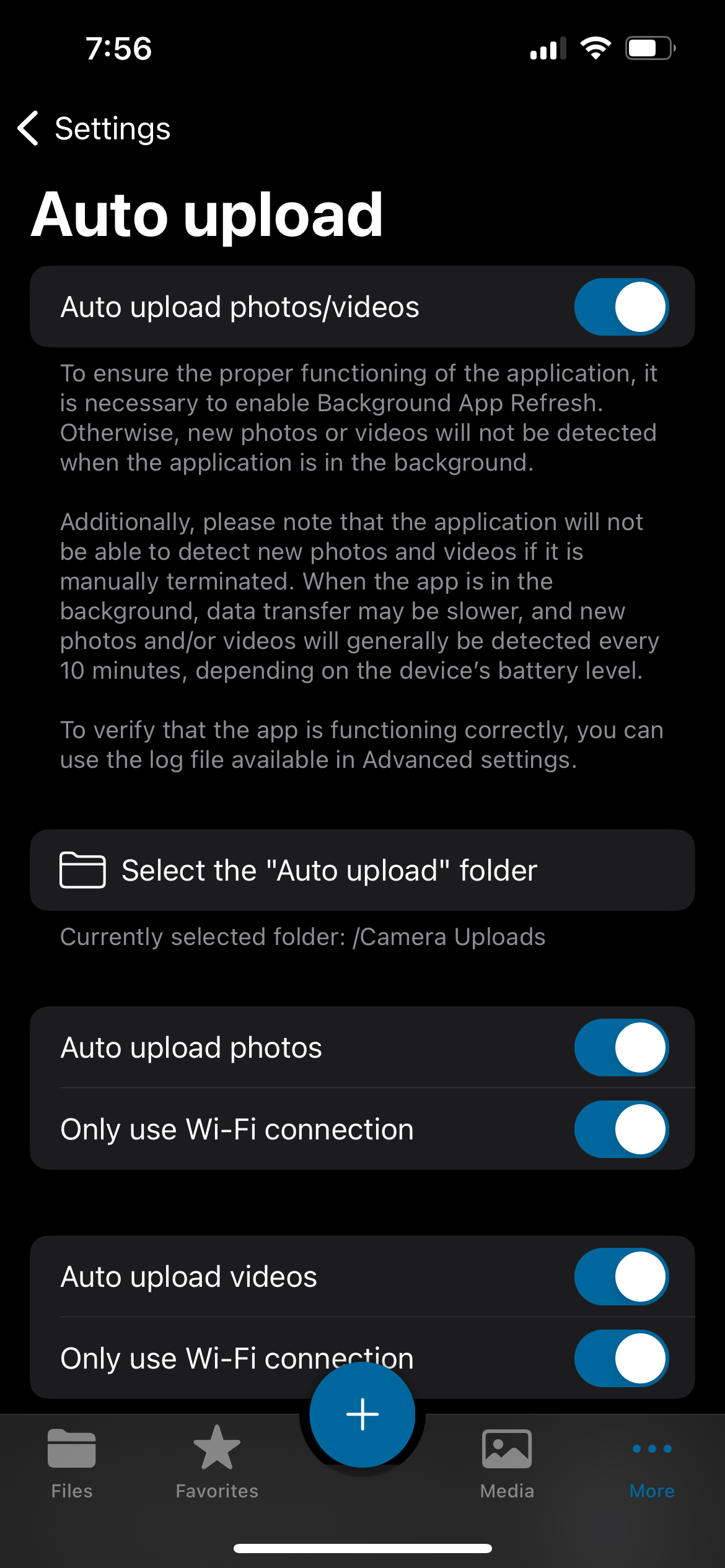
Nextcloud mobile app auto upload settings